
Jump to
Make the shortest GIF that explains the action
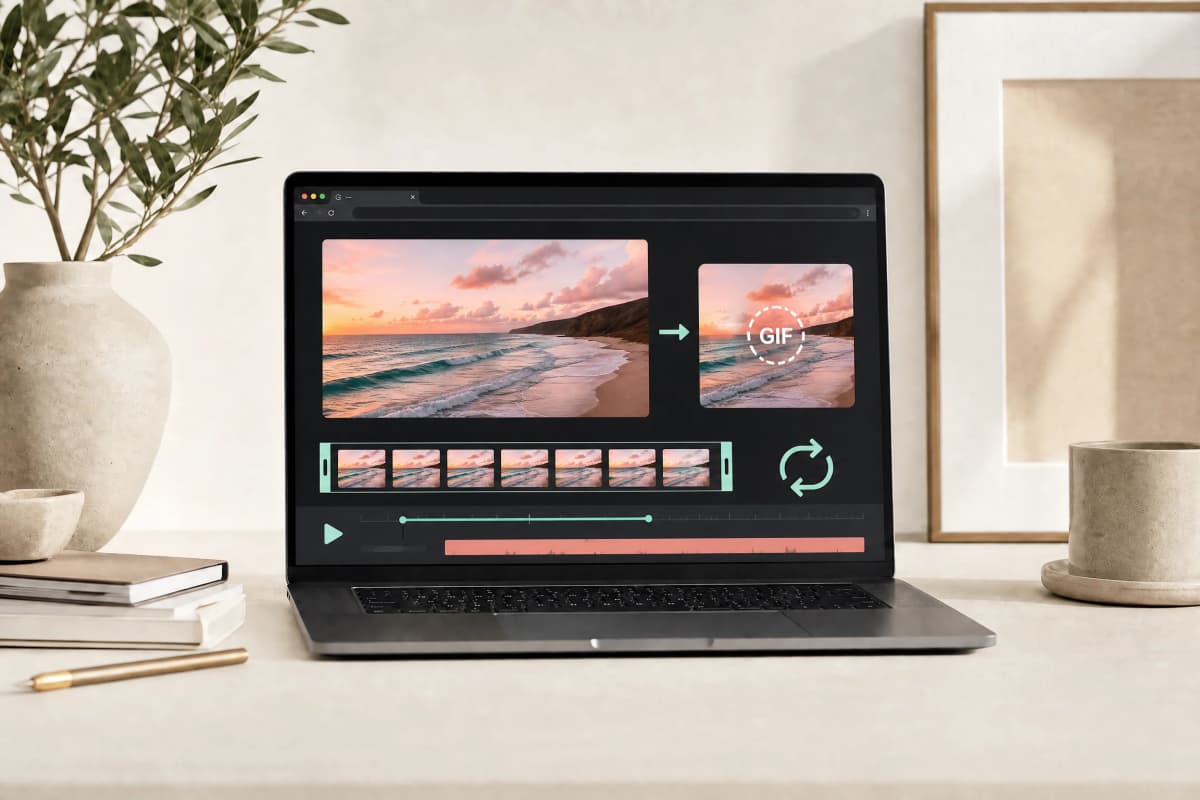
Open the Motionix GIF maker, select a video, trim the useful moment, choose a quality recipe, and export. For a first attempt, use a two-to-four-second clip with the default Balanced recipe. Preview the actual download before sharing it. GIF has no audio, and detailed or long clips can produce surprisingly large files.
The tool processes video in your browser rather than uploading the source. The first load still needs the application code, and browser decoding capabilities differ. An optional cloud-sharing action is separate from a normal local download.
Which quality recipe should you choose?
These are the current settings in Motionix's GIF maker, not generic controls that you must configure separately. The tool selects frame rate and palette size through the recipe.
| Recipe | Frames per second | Palette colors | Maximum selected duration | Useful starting point |
|---|---|---|---|---|
| Lightweight | 8 | 96 | 60 seconds | Simple motion where a small file matters most |
| Balanced | 12 | 160 | 30 seconds | A short product moment or interface demonstration |
| Crisp | 20 | 256 | 15 seconds | Faster movement where smoother playback matters |
The duration limits are safety ceilings, not recommended GIF lengths. A 60-second GIF can still be too large to export or share. Motionix stops outputs above 25 MB. Accepted source videos are limited to 500 MB, five minutes, and the source-dimension limits shown in the tool. Your device may reach its practical limit sooner.
Step-by-step: MP4 to GIF in Motionix
- Choose an MP4, MOV, WebM, or MKV file that your browser can decode. A container extension alone does not identify the video codec inside it.
- Wait for the timeline and preview to load. Select the beginning and end of the action instead of exporting the whole source.
- Start with Balanced. Choose Lightweight when size is more important or Crisp when the movement needs additional frames.
- Keep Original aspect ratio unless a square, landscape, or portrait crop improves the composition. Inspect any crop for missing text or cut-off subjects.
- Use the size control to choose a width that keeps the important detail readable. A small chat reaction needs fewer pixels than an interface tutorial.
- Choose whether the animation should loop, then select Create my GIF. Keep the tab open; the progress indicator describes the current work.
- Download the file and test it where you intend to use it. You can cancel processing and revise the selection instead of waiting for an unsuitable export.
A worked settings example, without invented benchmarks
Suppose a screen recording has one useful three-second action. At 12 frames per second, the Balanced recipe samples about 36 frames. At 20 frames per second, Crisp samples about 60 frames. The latter can describe motion more smoothly, but it requires encoding more frames.
A 480 x 270 frame has 129,600 pixels. A 240 x 135 frame has 32,400, one quarter as many. That arithmetic explains why reducing both dimensions can help substantially. It does not predict an exact number of kilobytes: motion, palette changes, and image detail affect compression. Motionix's estimated size is an estimate, not a promised final measurement.
Before increasing quality, ask whether viewers can understand the action at the smaller size. For an interface recording, crop away unused desktop space before reducing width so the text remains readable.
Make a GIF smaller without making it useless
Trim duration first. A pause at the beginning or end adds bytes but may communicate nothing. Next reduce output width and inspect the key frame at normal display size. Try Lightweight only after checking that its lower frame rate does not hide an important transition.
GIF uses an indexed palette rather than full photographic color in every frame. Gradients, smoke, shadows, and fast-moving camera footage can look rough even with the maximum palette. The MDN image-format guide explains why GIF has different strengths from modern image and video formats.
If quality remains poor, a short MP4 is often a better delivery format. Use the video compressor when the destination supports video. Do not convert a long video into a GIF just because an email attachment is too large; a hosted video link may be more useful.
Troubleshoot the result
| Symptom | What to check | Next action |
|---|---|---|
| File is rejected immediately | The file may be empty, oversized, or use an unsupported codec | Export a short H.264 MP4 from the original app and retry |
| Timeline never becomes useful | Metadata or seeking may be damaged | Try another source or re-export a shorter clip |
| GIF has no sound | GIF does not contain an audio track | Use MP4 or WebM if sound is needed |
| File is too large | Too many frames or too many pixels | Trim the selection, lower width, then try Lightweight |
| Text is unreadable | Important detail became too small or was cropped | Crop less or increase width; consider video instead |
| Colors look banded | The scene exceeds what an indexed palette represents well | Try Crisp, simplify the scene, or keep it as video |
| Export stops on a phone | The tab may be suspended or the device may run out of resources | Keep it foregrounded, close other heavy tabs, and shorten the clip |
Re-encoding is not a repair for missing source detail. It also does not make copyrighted material yours: use recordings you own or have permission to share.
GIFs in email signatures and help articles
Put meaningful content in the first frame because some email clients or accessibility settings may not animate the image. Keep a written explanation next to a tutorial GIF; do not make a rapidly looping animation the only way to understand a task.
For signatures, a static logo or headshot is usually quieter and lighter. Our Outlook email-signature image-size guide covers sizing, image blocking, and testing. For ordinary image attachments, see compressing images for Gmail and Outlook.
Frequently asked questions
Is Motionix a free GIF maker?
The browser workflow and local download do not require payment or an account. The tool enforces processing limits to avoid unbounded memory use; free does not mean every source video is supported.
Does changing a filename from MP4 to GIF convert it?
No. A GIF encoder must decode and sample video frames, map colors, and write a valid GIF file. The Motionix tool does that work before offering a download.
Can I keep the original resolution?
Only within the tool's supported output controls and memory budget. A smaller, tightly framed loop is usually more practical than a full-resolution camera recording.
Why can the GIF be larger than the video?
Modern video codecs compress motion efficiently. GIF's palette and frame encoding can require much more data for the same scene. Compare actual output sizes rather than assuming conversion will shrink the file.
Does the tool change the original video?
No. It reads the selected file and creates a separate output. Save your downloaded GIF before closing the tab; an unsaved browser preview is not permanent storage.
What should I do next?
Try one short clip in the GIF maker, compare the first result with the source, and change only one setting at a time. For the format decision rather than the workflow, read GIF, MP4, and WebM trade-offs.
Keep reading
make transparent png ·
How to Make a Transparent PNG from Any Image
Step-by-step guide to make transparent PNGs from any image: explains alpha transparency, why JPEG can't store transparency, methods to remove backgrounds, how to check edges (checkerboard), and how to export without flattening. Includes PNG vs WebP note, practical tips, a short quality checklist, FAQs, and Motionix tool CTA.
Read
remove background from hair and fur ·
How to Remove a Background from Hair, Fur, and Fine Edges
Practical, decision-oriented guide showing when to use automatic tools and when to call a manual editor to remove background from hair and fur. Includes step-by-step workflow, trade-offs table, halo cleanup tips, edge inspection checklist, FAQs, and a Motionix CTA.
Read
remove background from logo ·
How to Remove the Background from a Logo and Keep Edges Clean
Step-by-step guide to remove background from logo while preserving clean edges, anti-aliased outlines and small text. Compares automated tools, raster editing, and vector export; includes a quality checklist and FAQs.
ReadConversation
Join the conversation
Share a useful question, correction, or practical tip. Comments are reviewed before they appear.
Loading…