
Jump to
Quick answer (100–150 words)
For a LinkedIn profile picture, a square, high-resolution preparation is practical because LinkedIn lets you adjust the crop after upload. LinkedIn’s current upload guidance lists an 8 MB maximum, a profile-photo pixel range of 400×400 to 7680×4320, and JPG or PNG file types; it says GIFs are not supported. Motionix export defaults of 800×800 px for routine use and 1600×1600 px for extra detail are recommendations, not LinkedIn requirements. Crop as a tight head-and-shoulders square with comfortable margins so the circular presentation does not clip hair or shoulders.
Why size, crop, and format matter
LinkedIn generates multiple scaled copies of every profile photo for different pages and devices. A higher-resolution original gives the platform more pixels to downscale, which preserves facial detail and reduces blockiness after compression. A square crop is a practical preparation format for a circular presentation, but LinkedIn’s upload guidance says you can adjust the photo after uploading rather than requiring a square source. File format matters because JPG applies lossy compression that is efficient for photos while PNG is lossless and better for images with sharp edges.
Platform rules can change. Confirm accepted formats and any size limits on LinkedIn’s official help page.
Platform guidance vs Motionix export defaults
| Purpose | LinkedIn official guidance | Motionix export defaults (recommended) |
|---|---|---|
| Quick upload / routine use | See the LinkedIn help page for current formats and limits: LinkedIn profile photo help | 800 × 800 px, JPG, quality ~80 |
| High-quality / best preservation | Check LinkedIn help for any maximum dimensions or file-size limits | 1600 × 1600 px (or 2048×2048 for very detailed headshots), JPG/PNG |
| Small file / slow connections | Follow official limits and recommendations | 400 × 400 px, JPG, quality ~70 (only when necessary) |
Refer to LinkedIn’s documentation for any mandatory file-size ceilings or newly added restrictions.
Crop, face-safe margins, and composition
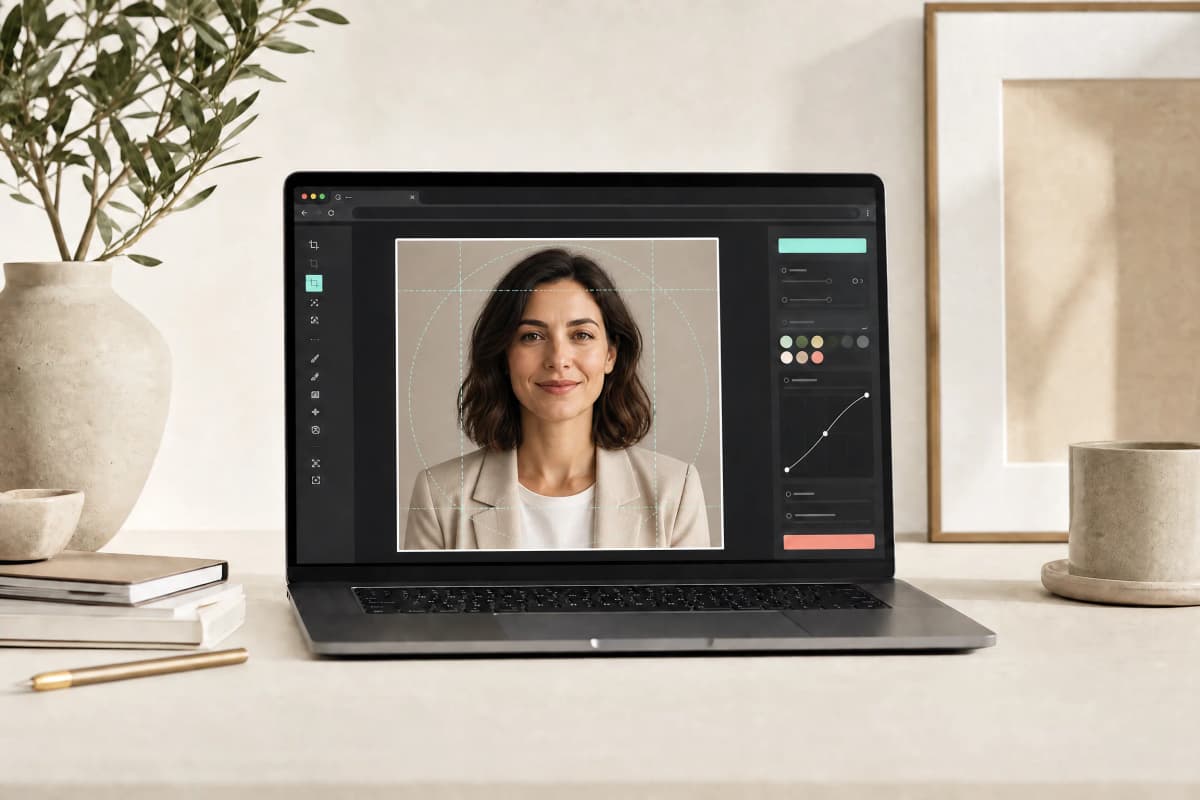
- Crop to a square before you upload. LinkedIn will center and mask photos, so prepare the square you want shown.
- Keep the eyes and top of the head inside the central 60–70 percent of the square. Aim for 15–20 percent margin on each side as a face-safe buffer.
- Use a tight head-and-shoulders framing. Avoid full-body shots because faces shrink and lose detail when reduced.
- Position eyes about one-third down from the top of the square. That reads well when LinkedIn crops and when the circular mask is applied.
Lighting, background, and clothing
- Use soft, even lighting. Natural window light or diffused LED lighting reduces harsh shadows.
- Choose an uncluttered background. Slight contrast between subject and background helps the subject stand out after compression.
- Wear simple, industry-appropriate clothing. Avoid busy patterns that can create artifacts when the image is compressed.
Why higher-resolution sources survive recompression better
LinkedIn and similar platforms create many downscaled versions from your upload. When the original has more pixels than the target sizes, downscaling preserves edges and facial detail. If the original is low resolution, the platform must upscale or heavily compress to make multiple sizes, which causes blur and compression artifacts. A clean, higher-resolution source gives better results even after automatic recompression.
Practical export steps
- Capture the photo using a phone or camera. For phone guidance see our guide to taking a professional headshot with a phone.
- Open a photo editor and crop to a square. Keep the face inside the central 60–70 percent and allow 15–20 percent margins.
- Export two files:
- Primary: 1600×1600 px, JPG at quality ~80 (best balance of detail and file size).
- Secondary: 800×800 px, JPG at quality ~80 for faster uploads and reasonable quality on mobile.
- Optional: create a 400×400 px file at quality ~70 only if you must minimize file size for slow connections.
- Test by uploading the primary file to LinkedIn and reviewing results on desktop and mobile. If the photo looks soft, try the larger export or reduce JPG compression.
Tools and optimization tips
The sourced image-size dataset links to LinkedIn's current specifications and distinguishes its minimum profile dimensions from a recommended banner size. You can use those presets directly in the photo resizer. A portrait reused in an email signature normally needs a much smaller displayed frame.
- Use the Motionix Photo Resizer to produce square crops and the export sizes above.
- Avoid excessive sharpening. Apply mild sharpening after resizing if needed.
- Remove unnecessary metadata to reduce file size and protect privacy.
- Follow general image optimization best practices for the web; see practical optimization tips from Shopify for more details.
Quick links:
- Motionix Photo Resizer
- Professional headshot with a phone
- LinkedIn profile photo tips
Quick checklist before you upload
- Is the image square and cropped tight to head and shoulders?
- Are the eyes roughly one-third from the top and inside the central face-safe area?
- Do you have 800×800 and 1600×1600 exports saved?
- Is the background uncluttered and lighting even?
- Have you kept a high-resolution master file in case you need to re-export?
If you want an automated, resume-friendly headshot export, try the Motionix Resume Photo Maker. For styling and framing advice, read our LinkedIn profile photo tips.
Call to action
Export a 1600×1600 px JPG of your best headshot and upload it to LinkedIn. Use the Motionix Photo Resizer to make consistent square versions for other profiles and resumes.
Frequently asked questions
What file types and limits does LinkedIn publish for profile photos?
LinkedIn’s current help page lists JPG or PNG, an 8 MB maximum, and profile-photo dimensions between 400×400 and 7680×4320 pixels. It also says GIFs are not supported. Platform guidance can change, so verify the live help page before exporting.
How close should my face be to the camera?
Aim for a head-and-shoulders crop. The face should occupy most of the square without cutting off the top of the head. Eyes should sit about one-third from the top.
Will a larger upload always look better?
A larger original generally yields better downscaled results. However, extremely large files can be compressed more aggressively by the platform and may take longer to upload. Our 1600×1600 px recommendation balances detail and practical file size.
How do I prevent LinkedIn from clipping my hair or shoulders?
Leave 15–20 percent margin around the face in the square crop. Center the subject so that when LinkedIn applies a circular mask nothing essential is cut off.
Should I remove metadata like EXIF before uploading?
Removing metadata can reduce file size slightly and protects privacy. It does not affect visual quality.
What if LinkedIn changes its image rules?
Platform requirements can change. Always check LinkedIn’s official help page for the most current guidance before exporting and uploading.
References
- LinkedIn Help: Photo won’t upload to your profile. official source
- Shopify: 10 must-know image optimization tips. official source
Related Motionix tools and guides
linkedin profile photo tips · professional headshot with phone · photo resizer
Keep reading
instagram story and reels cover size ·
Instagram Story and Reels Cover Size: A 2026 Guide
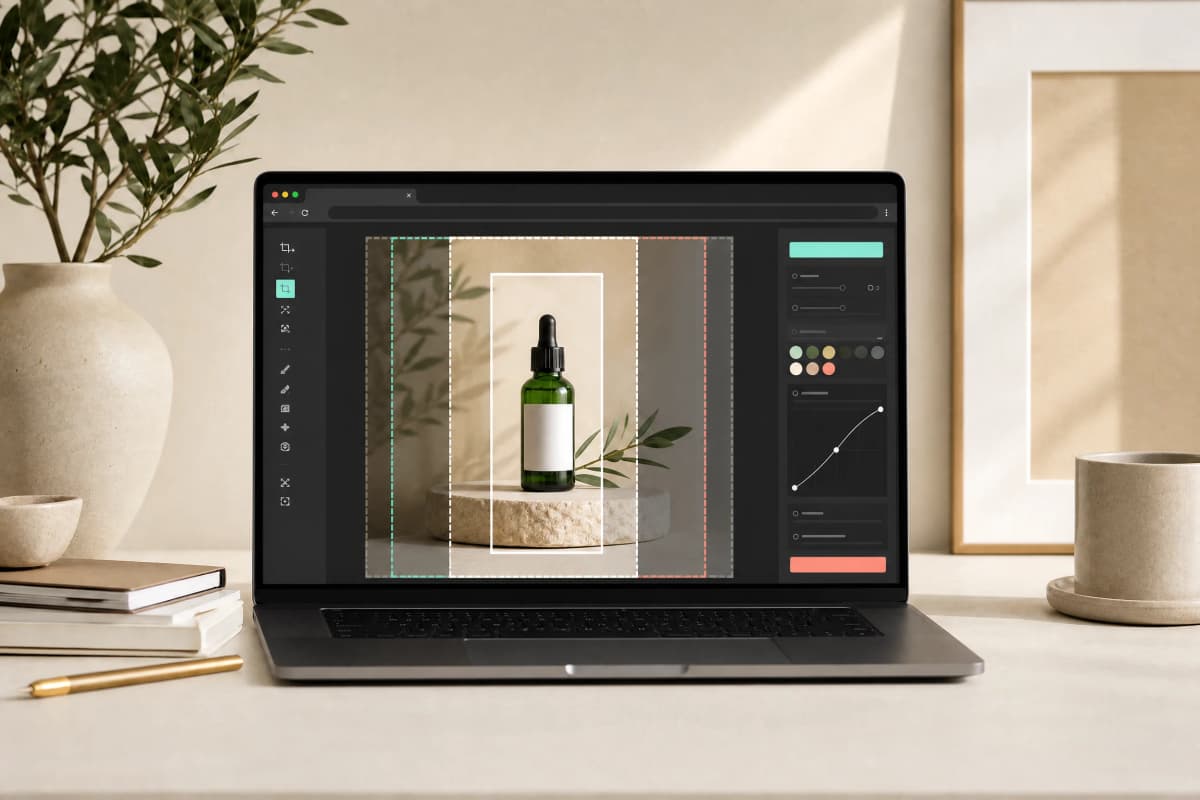
Practical specification guide for creating Instagram Story and Reels covers in 2026: official size references, safe zones, export tips, step-by-step resizing workflow, and a short quality checklist.
Read
video ·
Extract a Video Frame as PNG Without a Screenshot
Save a decoded video frame for a thumbnail or document, check the selected moment and dimensions, and avoid mistaking PNG export for video repair.
Read
subtitles ·
Fix Subtitle Timing: Offset or Gradual Drift?
Work out whether subtitles need a constant shift or two-point drift correction, then check the repaired SRT or VTT against your actual video.
ReadConversation
Join the conversation
Share a useful question, correction, or practical tip. Comments are reviewed before they appear.
Loading…